You can start using Logpoint for a 30-day trial with 1 SOAR entity license to configure and evaluate Logpoint before purchasing a full license. When using a trial version, a notification is displayed at the top right corner that includes how many usage days you have left. After you purchase a license, it’s removed.
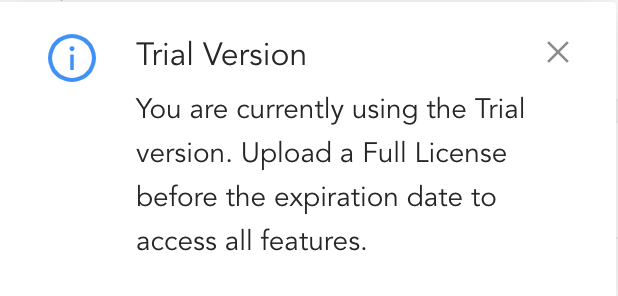
Trial Version
You can upload and manage SIEM, SOAR, and UEBA licenses from Settings >> System Settings >> Licenses.
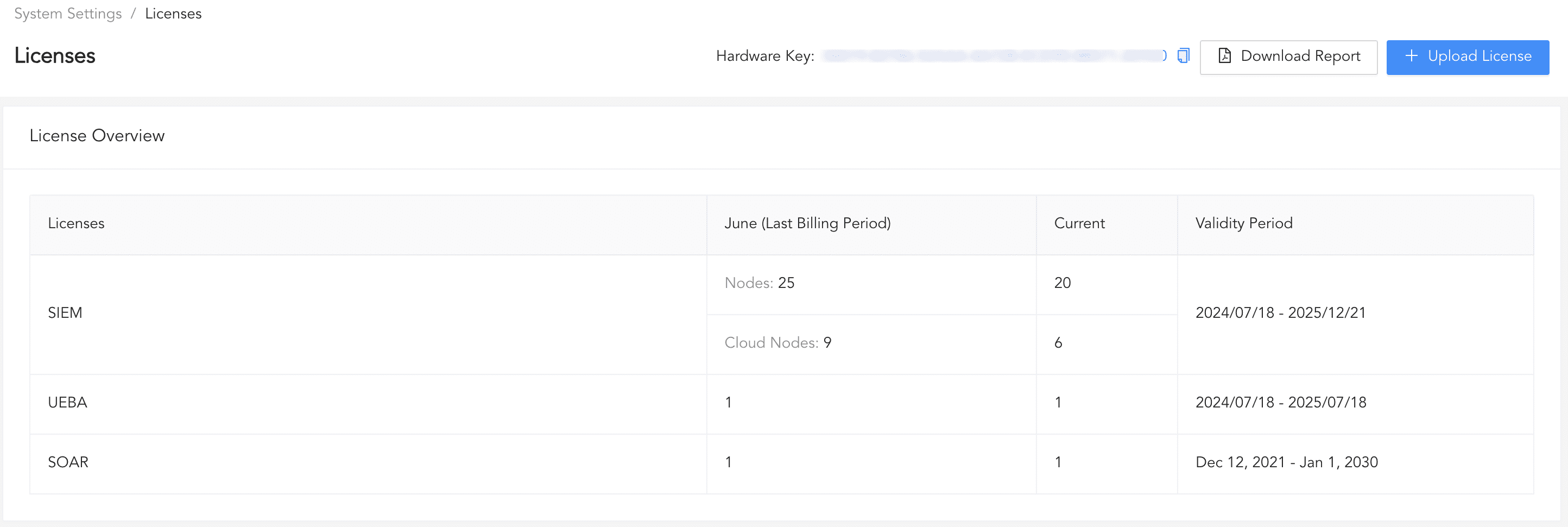
Logpoint Licenses
Logpoint tracks your license usage based on the total number of nodes used, which is displayed on the license page. A node is any data source that generates logs, and Logpoint categorizes them into two types.
They are part of a physical infrastructure within an organization and are not hosted on any cloud platforms. For example: desktops, laptops, printers, mobile phones, routers, on-prem servers, and firewalls. Logpoint counts and displays the total number of unique IP addresses from these log sources as nodes.
They are part of cloud services hosted on platforms such as AWS, Azure, Google Cloud Platform, Salesforce, and Cisco. Logpoint counts and displays the total number of log sources from these cloud platforms as cloud nodes.
In the License page, Last Billing Period displays the node usage for the previous month, and Current displays the node usage for the current month.
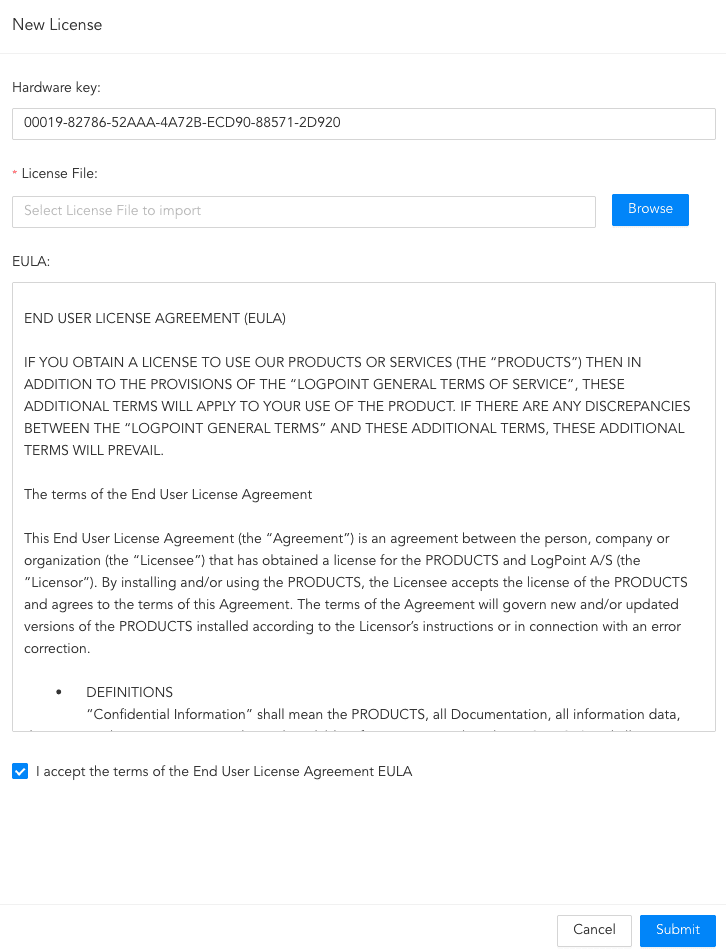
Before adding a license, contact Logpoint Support and provide them with your Hardware Key. They will generate a license based on your purchase. You will receive a single license file for SOAR and SIEM, and a separate file for UEBA. For SOAR, you can choose between Automation or Complete SOAR.
Automation gives you access to automated threat investigation, containment and removal. It includes out-of-the-box playbooks in addition to the ability to create your own, custom playbooks.
Complete SOAR gives you Case Management in addition to automation and playbooks.
You can view whether your SOAR license is Automation only or Automation + Case Management from the License Overview list.
You can find the Hardware Key at Settings >> System Settings >> Licenses.
To add License:
You can download a report on node uses by clicking Download Report. The report displays the number of Cloud Nodes and Nodes used during the billing period.
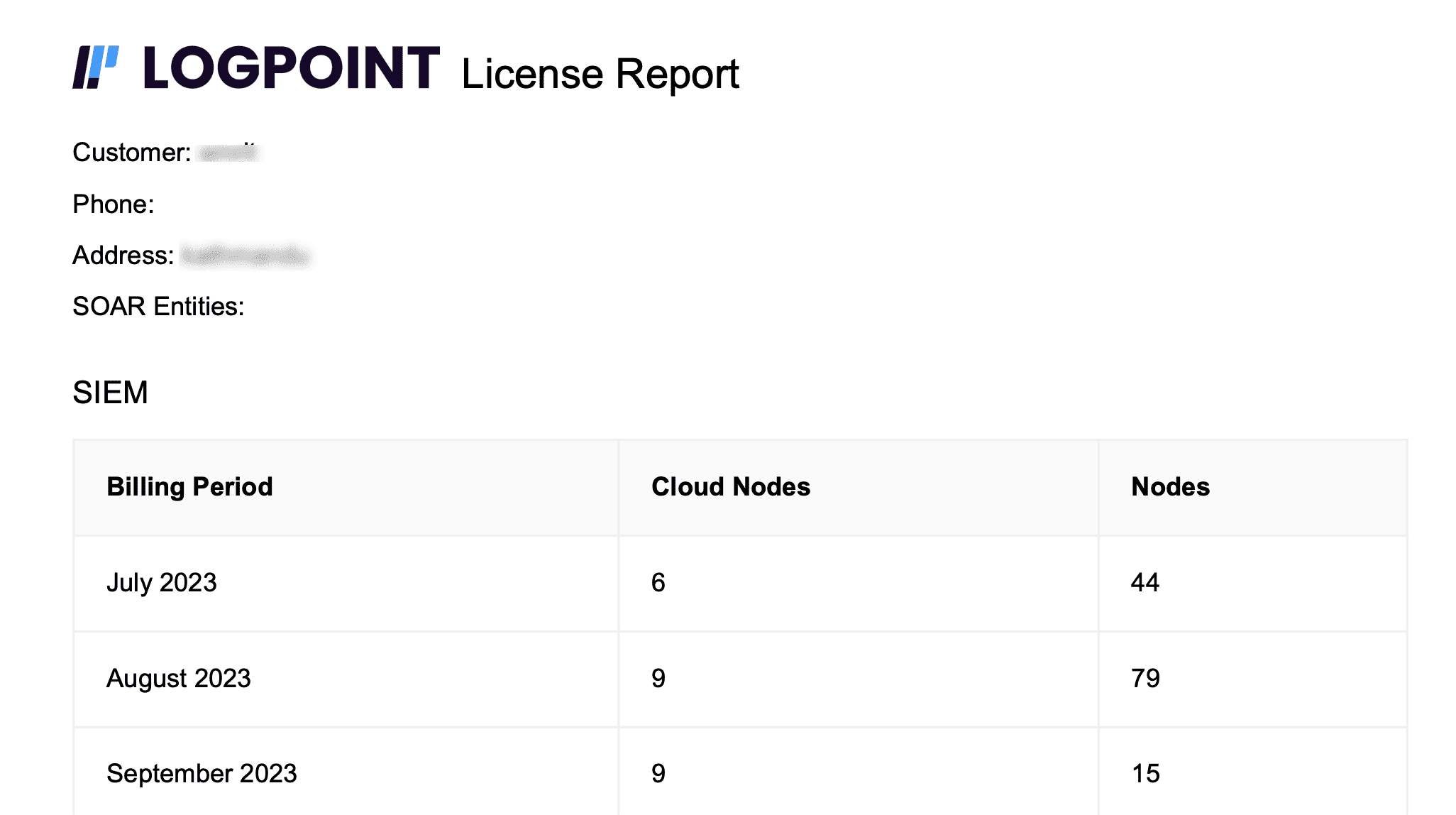
License Report
A notification is displayed at the top right corner 45 days before your license expires. When a license expires, you must purchase and add a new license.
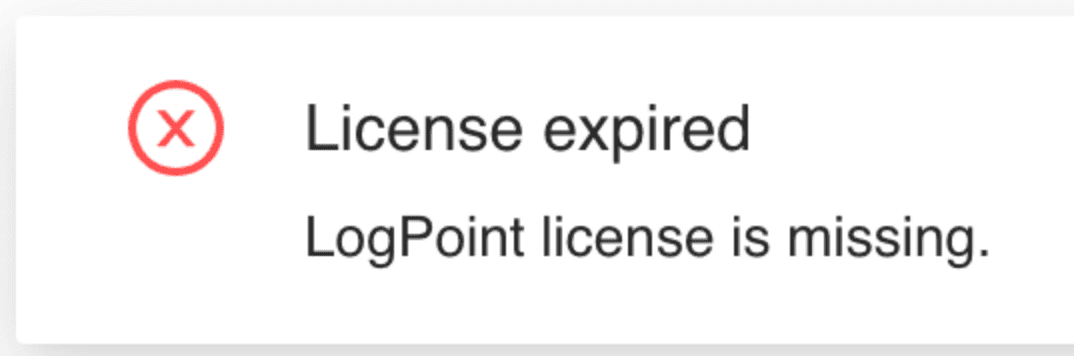
License expiry notification
You can request a new license or renew your license from License Portal. For more information, go to the Service Desk.
With an expired license:
Logpoint collects and stores your logs but you cannot use search or perform analytics on them.
Logpoint generates alerts but you cannot see them.
You can contact Logpoint Support and access Help Center.
You can add a new license from Settings >> System Settings >> Licenses.